

Unity 6.3 First Person Player Controller
In this first part of the tutorial series we'll build a scalable, event-driven First Person Player Controller in Unity 6.3 LTS using C#. We'll combine Unity's new Input System, clean folder structures, and best practices for extensible architecture.
Step 1: Project Setup & Folder Structure
First, create a new Unity 6.3 LTS project. If you're unsure how, check out my YouTube setup guide.
I recommend a clean folder structure to keep your project organized:
Assets/
└── Scripts/
    ├── Input/
    └── Player/
Step 2: Create Player Input Actions with Composite Bindings
Unity’s new Input System allows us to create flexible input setups. Let’s create the PlayerInputActions asset and set up the Action Map with composite bindings for smooth movement controls.
Assets/
└── Scripts/
│    ├── Input/
│    └── Player/
└── PlayerInputActions
- Right-click in the
Assets/folder → Create → Input Actions → name itPlayerInputActions. - Double-click the asset to open the Input Actions Editor.
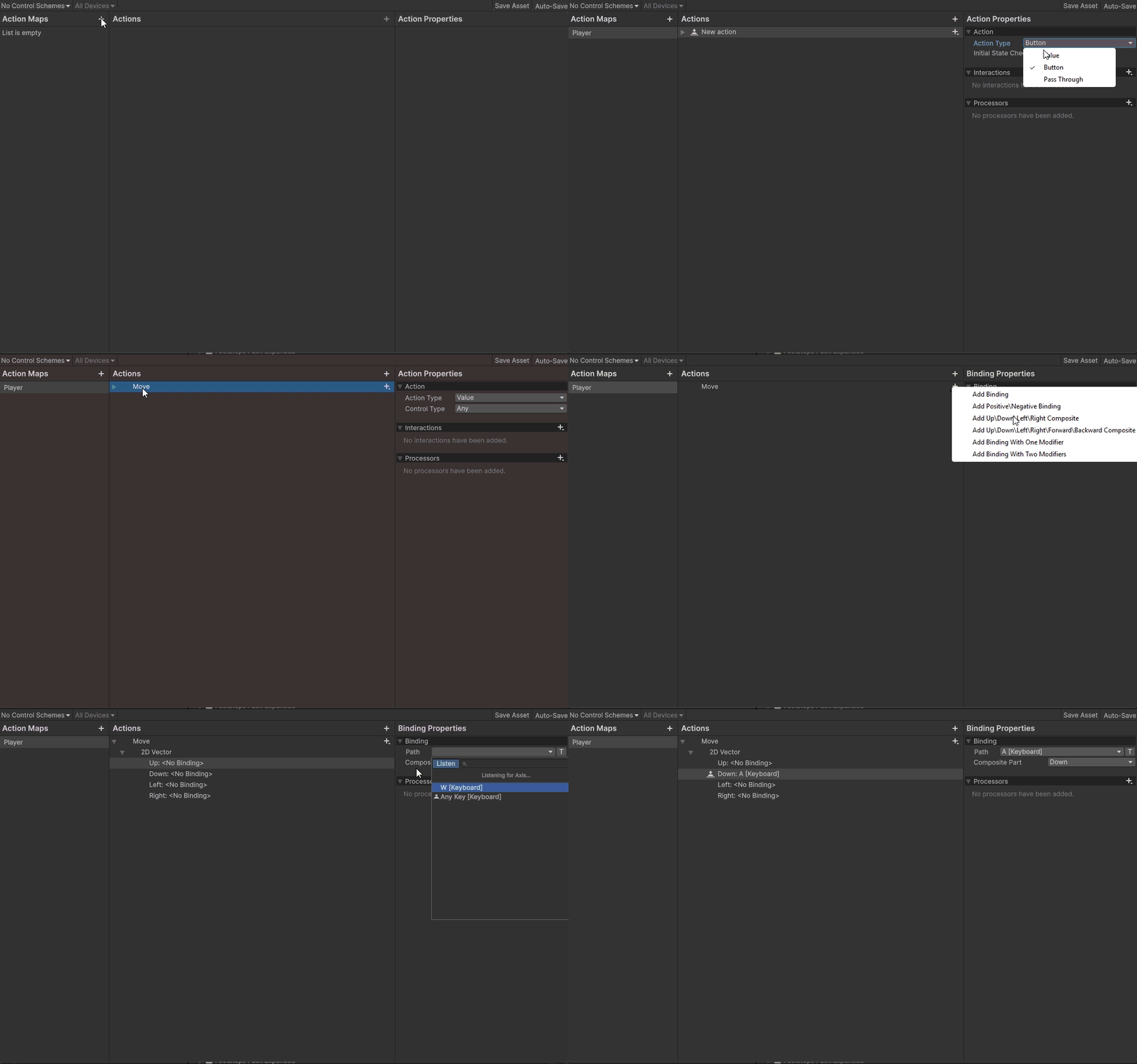
- Click the + button next to Action Maps → name the new Action Map
Player. - Inside the
PlayerAction Map, add a new Action calledMove:- Set Action Type to
Value. - Set Control Type to
Vector2.
- Set Action Type to
- With
Moveselected, click Add Binding (+) → select Add 2D Vector Composite.- Name this composite binding
WASD. - Assign the following keys to each direction:
- Up:
W[Keyboard] - Down:
S[Keyboard] - Left:
A[Keyboard] - Right:
D[Keyboard]
- Up:
- Name this composite binding
- Add another Action called
Look:- Set Action Type to
Value. - Set Control Type to
Vector2. - Add a binding for
DeltafromMousefor mouse movement.
- Set Action Type to
- Make sure to Safe the Asset, ⚠️IT DOES NOT AUTOSAVE⚠️
Tip: Using a 2D Vector Composite for
Movegroups the WASD keys into a singleVector2value, making it easier to read combined directional input in code usingReadValue<Vector2>(). TheLookaction is already set up with a Mouse Delta binding, but we will implement its functionality in the next step.
Visual Structure Example in the Input Actions Editor:
IPlayerInput
Assets/
└── Scripts/
│    ├── Input/
│    │   └── IPlayerInput.cs
│    └── Player/
└── PlayerInputActions
- Right-click in the
Input/folder → Create → Monobehavior Script → name itIPlayerInput. - Do the same again, Right-click
Input/folder → Create → Monobehavior Script → name itInputProvider. - Double-click the asset
IPlayerInputand it will open in your editor.
using System;
using UnityEngine;

public interface IPlayerInput
{

    Vector2 MoveInput { get; }
    Vector2 LookInput { get; }

}
- Double-click the asset
InputProviderand it will open in your editor.
InputProvider
using System;
using UnityEngine;
using UnityEngine.InputSystem;

public class InputProvider : MonoBehaviour, IPlayerInput
{
    [SerializeField] private float mouseSensitivity = 0.1f;

    // We access the `PlayerInputActions` asset we created, go into the `Player` Action Map, and read the value
    // from the`Move` action using `ReadValue<Vector2>()`:
    private PlayerInputActions actions;

    public Vector2 MoveInput => actions.Player.Move.ReadValue<Vector2>().normalized;
    public Vector2 LookInput => actions.Player.Look.ReadValue<Vector2>() * mouseSensitivity;

    private void Awake()
    {
        actions = new PlayerInputActions();
    }

    private void OnEnable()
    {
        actions.Enable();
    }

    private void OnDisable()
    {
        actions.Disable();
    }
}
Step 3 Create Player Scripts
Assets/
└── Scripts/
│    ├── Input/
│    │   ├── InputProvider.cs
│    │   └── IPlayerInput.cs
│    └── Player/
│        ├── PlayerMovement.cs
│        └── PlayerLook.cs
└── PlayerInputActions
- Right-click in the
Player/folder → Create → Monobehavior Script → name itPlayerMovement. - Do the same again, Right-click
Player/folder → Create → Monobehavior Script → name itPlayerLook. - Double-click the asset
PlayerMovementand it will open in your editor.
using UnityEngine;

[RequireComponent(typeof(CharacterController))]
[RequireComponent(typeof(IPlayerInput))]
public class PlayerMovement : MonoBehaviour
{
    [SerializeField] private float walkSpeed = 4f;
    [SerializeField] private float gravity = -9.81f;

    private CharacterController characterController;
    private IPlayerInput input;
    private Vector3 velocity;

    private void Awake()
    {
        characterController = GetComponent<CharacterController>();
        input = GetComponent<IPlayerInput>();
    }

    private void Update()
    {
        ApplyGravity();
        Move();
    }

    private void Move()
    {
        Vector3 direction = transform.right * input.MoveInput.x
                          + transform.forward * input.MoveInput.y;

        characterController.Move(direction * walkSpeed * Time.deltaTime);
        characterController.Move(velocity * Time.deltaTime);
    }

    private void ApplyGravity()
    {
        if (characterController.isGrounded && velocity.y < 0f)
        {
            velocity.y = -2f;
            return;
        }
        velocity.y += gravity * Time.deltaTime;
    }
}
- Double-click the asset
PlayerLookand it will open in your editor.
using UnityEngine;
using Unity.Cinemachine;

[RequireComponent(typeof(IPlayerInput))]
public class PlayerLook : MonoBehaviour
{
    [SerializeField] private CinemachinePanTilt panTilt;
    [SerializeField] private float verticalClamp = 85f;

    private IPlayerInput input;
    private float pitch;

    private void Awake()
    {
        input = GetComponent<IPlayerInput>();
        Cursor.lockState = CursorLockMode.Locked;
        Cursor.visible = false;
    }

    private void Update()
    {
        RotateHorizontal();
        RotateVertical();
    }

    private void RotateHorizontal()
    {
        transform.Rotate(Vector3.up * input.LookInput.x);
    }

    private void RotateVertical()
    {
        pitch -= input.LookInput.y;
        pitch = Mathf.Clamp(pitch, -verticalClamp, verticalClamp);
        panTilt.TiltAxis.Value = pitch;
    }
}
Wrapping Up & Next Steps
Congratulations! 🎉 You now have a fully functional Movement + Look system in Unity 6.3 LTS:
- Your player can move using WASD.
- The camera responds to mouse movement.
- Everything is organized with a clean folder structure and modular scripts.
This setup forms a solid foundation for a scalable, event-driven player controller. In Part 2, we’ll take the next step:
- Create the Player GameObject in your scene
- Attach the Movement and Look scripts
- Set up the Cinemachine camera to follow the player
- Test your player in a playable scene
💡 Tip: Try adjusting
walkSpeedandmouseSensitivityvalues now, it’s a great way to get familiar with the system before diving into Part 2.